
If you’ve ever wondered how to automate your welcome sequence in MailerLite, you’re in the right place. Automating your welcome sequence doesn’t just save time, it builds connection, trust, and momentum with your new subscribers from the very first email.
In this post, I’ll walk you step-by-step through creating a simple, professional MailerLite automation, even if you’re not “techy.” By the end, you’ll know how to build a flow that welcomes new subscribers, nurtures them naturally, and works quietly in the background while you focus on your creative or business goals.
What Is a Welcome Sequence (and Why It Matters)
A welcome sequence(aka flow, or automation) is a series of automated emails sent to new subscribers after they join your list.
It’s the digital version of saying, “Hey, I’m glad you’re here.” It sets the tone for how people experience your brand.
When you automate your welcome sequence in MailerLite, you:
Build trust faster
Show your brand personality
Introduce your offers gently
Keep your audience engaged
Avoid having to manually send every follow-up
Most importantly, you save time while keeping your new subscribers warm, curious, and connected.
Step 1:
Plan Your Welcome Sequence Before Building It
Before diving into MailerLite, spend a few minutes outlining what your sequence should do.
Ask yourself:
What’s the first impression I want to create?
What problems do my subscribers want solved?
What’s the next step I want them to take after reading my emails?
Here’s a simple 4-email welcome sequence template you can use:
| Goal | Content Idea | |
|---|---|---|
| 1️⃣ | Welcome & Introduce | Thank them for joining, share who you are, what they’ll get |
| 2️⃣ | Story & Connection | Share a relatable story or the “why” behind your brand |
| 3️⃣ | Value Delivery | Deliver a freebie, tutorial, or quick win |
| 4️⃣ | Soft Offer | Invite them to explore your service, free call, or paid product |
Keep it human, helpful, and light. That’s what converts.
Step 2:
Create a Group or Segment in MailerLite
Once you’ve planned your sequence, it’s time to set up your automation inside MailerLite.
Log in to your MailerLite dashboard.
Go to Subscribers → Groups.
Create a new group, for example: “Freebie Download” or “Newsletter Signups.”
This group will act as the trigger for your automation. Every time someone joins it (by signing up via your form or landing page), the automation will start automatically.
Tip: You can create multiple groups for different lead magnets or offers later, each with its own custom welcome flow.
Step 3:
Build Your Automation Workflow
Now it’s time to build your MailerLite automation.
Go to Automations in the main menu.
Click “Create workflow.”
Choose the trigger “When subscriber joins a group.”
Select the group you created earlier (“Freebie Download,” etc.).
Name your workflow something simple like “Welcome Sequence.”
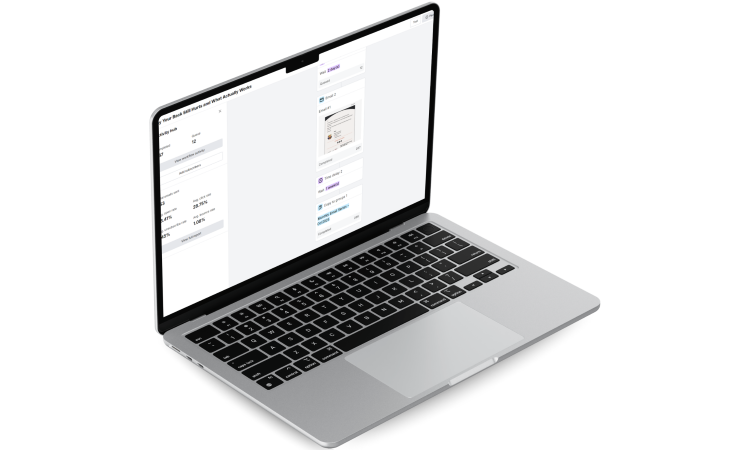
Now you’ll see a visual flow chart; this is where the magic happens.
Step 4:
Add Your First Email (The Warm Welcome)
Click the plus (+) button under your trigger and select “Email.”
This first email should:
Thank them for joining
Deliver what you promised (your freebie, PDF, or resource)
Set expectations for what’s coming next
Here’s an example outline:
Subject: Welcome to {$company}! Here’s your free guide 💌
Body:
Hi {$name},
I’m so happy you’re here! Inside this email, you’ll find your [freebie or offer]. Over the next few days, I’ll send you a few short emails to help you get the most out of it.
If you ever need help, just hit reply, I read every message.
Talk soon,
Kisilda
Step 5:
Add Delays Between Emails
After your first email, click the plus (+) button again and choose “Delay.”
Add a delay of 1–2 days between each email.
This spacing keeps your emails natural, not overwhelming.
Pro tip: Choose 1 day if you want to stay top of mind, or 2–3 days if your audience prefers a slower pace.
Step 6:
Add the Rest of Your Emails
Repeat the process for each message in your sequence.
Here’s how your workflow might look:
Trigger: Subscriber joins group “Freebie Download”
↓
Email 1: Deliver freebie + short welcome message
↓
Delay: 1 day
↓
Email 2: Share your personal story or “why”
↓
Delay: 2 days
↓
Email 3: Offer quick value (tutorial, checklist, or mini-tip)
↓
Delay: 2 days
↓
Email 4: Invite them to learn about your paid service or free consult
MailerLite makes it easy to drag and drop each block visually; you don’t need coding or tech skills.
Step 7:
Design Your Emails Beautifully
This is where MailerLite really shines.
The built-in drag-and-drop editor lets you design beautiful, brand-matching emails, even if you’re not a designer.
Here are my top MailerLite design tips:
Upload your brand logo once, so it stays consistent.
Use Canva to create matching graphics, banners, or button designs.
Stick to your brand fonts and colors.
Keep paragraphs short (3–4 lines max).
And don’t forget: visuals should support your message, not distract from it.
Step 8:
Add Personalization and Dynamic Fields
Personal touches go a long way.
Use dynamic fields like:
Hi {$name},
I noticed you downloaded {$freebie}.
Here’s something special just for {$name}.
It makes each email feel like a one-to-one conversation, not a broadcast.
Bonus Tip: You can also use conditional blocks to show or hide content based on subscriber tags (perfect for segmenting freebie users vs. customers).
Step 9:
Activate and Test Your Workflow
Before activating your automation, send test emails to yourself.
Check for:
- Spelling and links
- Mobile responsiveness
- Whether your freebie download works
Then click “Turn On” in MailerLite.
Your automation will now trigger every time a new subscriber joins your group, fully automatic!
Step 10:
Track Performance and Optimize
One of MailerLite’s biggest strengths is its simple, visual analytics dashboard.
After a week or two, review your data:
Open Rate: Are subject lines working?
Click Rate: Are people engaging with your content?
Unsubscribe Rate: Are you emailing too often?
Make small improvements, rewrite subject lines, add visuals, or change email order. Tiny tweaks can double engagement.
Common Mistakes to Avoid
Even with a great setup, these are common errors people make when automating their welcome sequence in MailerLite:
Not delivering value early: Make your freebie or first email worth it.
Forgetting mobile users: Always preview your email on mobile.
Overloading with information: Keep your sequence light and conversational.
Not testing links: One broken link can ruin your flow.
Skipping analytics: Data tells you what your audience loves most.
Real-Life Example: From Manual to Automated
One of my clients, a health coach, used to manually email her freebie every time someone signed up. It took hours every week.
After we automated her welcome sequence in MailerLite:
Subscribers instantly received her lead magnet.
Her open rates jumped from 42% to 67%.
She gained 3 new paid clients in her first month, all from automated follow-ups.
That’s the magic of automation: more freedom, less busywork.
Final Thoughts: Make Automation Feel Human
Even though your emails are automated, they should never feel robotic.
Here’s how to keep them warm and authentic:
Use your natural tone of voice.
Write like you’re talking to one person.
Share mini stories or personal insights.
Always include a simple question like “What’s your biggest struggle with [topic]?”
Automation should feel like a gentle conversation, not a funnel.
Bonus Tip: Add a Soft Call-to-Action at the End
Every welcome sequence should end with a soft nudge toward the next step, but never pressure.
For example:
“Ready to create your first email setup? Let’s work together. Contact me here.”
“Want to keep things running smoothly? Download my Effortless Setup Starter Kit.”
Small, friendly CTAs move people closer to becoming loyal customers, naturally.
Want someone to check your MailerLite setup for you?
I offer a MailerLite Setup Review; I go through your account and send you a private video within 5 business days telling you exactly what’s working, what’s broken, and what to fix. One-time, $67
Need Help Setting Up Your Welcome Sequence?
If all this still feels overwhelming, I can help.
I specialize in setting up MailerLite, designing emails, and creating automation workflows that feel both professional and personal, with no tech overwhelm.